Buy remeselnik.eu ?
We are moving the project
remeselnik.eu .
Are you interested in purchasing the domain
remeselnik.eu ?
domain@kv-gmbh.de · 0541-91531010
Buy remeselnik.eu ?
How can I open an Excel file with Excel 2010 instead of Excel 2016?
To open an Excel file with Excel 2010 instead of Excel 2016, you can right-click on the Excel file you want to open. Then, select 'Open with' and choose Excel 2010 from the list of programs. If Excel 2010 is not listed, you can click on 'Choose another app' and navigate to the location where Excel 2010 is installed on your computer. Select Excel 2010 and check the box that says 'Always use this app to open .xlsx files' to ensure that Excel 2010 is used to open Excel files by default. **
How can I open an Excel file with Excel 2010 and not with Excel 2016?
To open an Excel file with Excel 2010 instead of Excel 2016, you can right-click on the Excel file you want to open. Then, select "Open with" and choose Excel 2010 from the list of programs. If Excel 2010 is not listed, you may need to browse for the program in your computer's file directory. Once you have selected Excel 2010, the file should open in that version of Excel. **

Similar search terms for Excel
Top-Angebote
Products related to Excel:
-
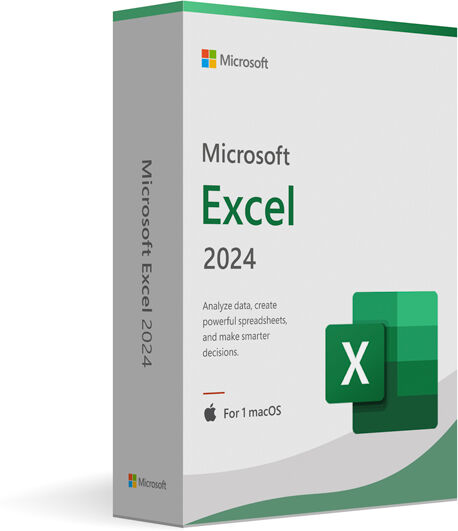
Microsoft Excel 2024 for macOSMicrosoft Excel 2024 for macOS offers a powerful and versatile spreadsheet solution tailored specifically for Mac users. With its updated features and seamless integration into the Apple ecosystem, this version of Excel is designed to enhance productivity whether you're managing complex data, performing financial analysis, or organising your day-to-day information. Built to leverage the capabilities of macOS, Excel 2024 delivers a smooth and intuitive experience. The interface is optimised for Mac's Retina displays, ensuring crisp visuals and easy navigation. Users will appreciate the familiar ribbon menu, refined for macOS conventions, enabling quick access to a wide array of data tools, formulas, and formatting options. This edition of Excel supports extensive data manipulation, including advanced charting features that help visualise trends and insights clearly. Whether you're creating pivot tables, employing functions for statistical analysis, or automating tasks with macros, Excel 2024 offers robust tools to help streamline your workflow. Collaboration is simplified with improved sharing options. Workbooks can be shared securely with colleagues and collaborators, with real-time co-authoring capabilities that keep everyone on the same page. Changes are tracked efficiently, and version history allows you to revisit previous iterations of your work. Integration with other Microsoft 365 applications is seamless, making it easier to combine data from Word documents or PowerPoint presentations. Excel 2024 also supports compatibility with a wide range of file formats, ensuring you can open and save your spreadsheets without hassle. Security features are enhanced to protect your sensitive data. Password protection, data encryption, and compliance with Microsoft’s trusted security standards mean your information stays secure whether stored locally or in the cloud. For Mac users who require a comprehensive spreadsheet program, Microsoft Excel 2024 stands out as a reliable and feature-rich choice. Its combination of powerful functions, polished design, and strong integration with both macOS and Microsoft 365 services makes it suitable for students, professionals, and businesses alike. Experience the efficiency and flexibility of Microsoft Excel 2024 for macOS to manage your data with confidence and precision. Whether handling budgets, datasets, or project plans, this edition equips you with the tools needed for success on your Mac.249,99 £*Shipping: 0,00 £Secure redirect to the provider
-
David A. Williams Excel VBA and Macros 2 Books Collection Set For Step-by-Step Excel Programming - Non Fiction - PaperbackTitles in This Set:. Excel VBA: Learn VBA with Excel. Excel Macros Mastery: Automate Your Spreadsheets Condition: BRAND NEW. Format: Paperback. ISBN: Overview:. Unlock the power of automation in Excel with this carefully designed two-book collection. Built for practical learners, the bundle guides you from the fundamentals of macros and the Visual Basic for Applications (VBA) language to hands-on techniques that save time, reduce errors, and turbocharge your productivity. The first book introduces core concepts—recording macros, editing simple scripts, and applying automation to everyday tasks—so you can start seeing immediate results. The second book dives deeper into VBA programming: how to structure projects, manage variables and data, implement robust error handling, and create user-friendly forms to streamline data entry. Together, these titles form a cohesive learning path that combines ready-to-run code with clear explanations, enabling you to practice along and build confidence as you go. Whether you’re a student, analyst, or professional looking to optimize workflows, this collection makes Excel automation approachable, reliable, and achievable. What Makes This Collection Special:. This set stands out because it pairs two complementary strands of Excel automation. You get practical, immediately usable macros that solve real-world problems, alongside a solid foundation in VBA programming that empowers you to customize and extend those solutions. The journey from macro basics to more advanced scripting is deliberately paced, so you can master one step at a time and revisit concepts with increasing complexity. The inclusion of sample code and guided exercises means you can learn by doing, not just reading. Designed for quick wins and lasting skills, the collection is also a thoughtful gift for colleagues, graduates, or anyone who spends long hours in spreadsheets and wants to reclaim that time for more impactful work. Books Included in This Collection:. Excel VBA: Learn VBA with Excel. This title introduces the essentials of VBA within the familiar Excel environment. Readers discover how to record actions, write straightforward loops, and manipulate worksheets with code. The book emphasizes practical, repeatable templates you can adapt to your own projects, plus step-by-step guidance on debugging and refining your scripts. With approachable explanations and hands-on exercises, it’s ideal for beginners who want to automate routine tasks and build a solid programming habit without being overwhelmed by jargon. Excel Macros Mastery: Automate Your Spreadsheets. This second book expands your toolkit with more robust VBA techniques and macro-automation strategies. Topics include organizing code for scalability, handling errors gracefully, working with arrays and objects, and building user forms to collect data efficiently. Real-world examples—from budget trackers to data dashboards—demonstrate how disciplined coding translates into tangible time...29,97 £*Shipping: 2,99 £Secure redirect to the provider
-
Joseph Joseph Excel 2-Tier Steel Dish Rack - GreyJoseph Joseph presents the Excel 2-Tier Steel Dish Rack in Grey and Stainless Steel, this great rack offers plenty of draining space but feeling compact at the same time and not crowding your sink area, it has an integrated drip tray underneath the built-in wine glass holder, enabling them to dry safely. The large capacity gives you plenty of room for all your crockery and dishes, the fast-draining design with its raised ribs prevents water from collecting underneath mugs or bowls. A great dish rack for all kitchens. Product Features Excel 2-Tier Dish Rack - Grey Made from steel with a stainless steel fingerprint-proof coating on the body Large draining space capacity Coated non-scratch wine glass holder for up to 4 glasses Movable cutlery drainer and draining spout Dismantles easily for cleaning Dimensions: H 32cm x W 46.5cm x D 31.5 cm / H 12.6" x W 18.32" x D 12.4" Hand wash - do not use abrasive cloths on stainless steel parts69,99 £*Shipping: 0,00 £Secure redirect to the provider
-
ZURU X-Shot Excel Reflex 6 Blaster - Age 8+ - RedPrepare to dominate your opponents with the X-Shot Excel Reflex 6 blaster. This blaster is designed for maximum firepower, allowing you to ambush the competition with a rapid-fire of 6 darts in just seconds thanks to its rotating barrel. The combination of speed and frequency makes this blaster a formidable opponent on the battlefield. Before you unleash a storm of darts, prime and load your blaster, then fire away with precision and power, hitting targets from distances of over 27 meters. With the X-Shot Reflex 6 in your hands, you can improve your chances of winning and finish the battle before your opponents react. The X-Shot Reflex 6 blaster is suitable for ages 8 and above.5,99 £*Shipping: 3,95 £Secure redirect to the provider


-
How do I link different Excel files in Excel?
To link different Excel files in Excel, you can use the "Insert" tab and select "Object" from the "Text" group. Then, choose "Create from file" and browse to select the file you want to link. You can also use the "Copy" and "Paste Special" options to link data between different Excel files. Another option is to use the "Data" tab and select "Get Data" to import data from other Excel files and create a connection between them. **
-
'Excel or Libre?'
The choice between Excel and LibreOffice depends on your specific needs and preferences. Excel is a widely used and powerful spreadsheet program with a user-friendly interface, extensive features, and compatibility with other Microsoft Office applications. On the other hand, LibreOffice is a free and open-source alternative that offers similar functionality to Excel, making it a good choice for those looking for a cost-effective solution. Ultimately, the decision between Excel and LibreOffice will depend on factors such as budget, compatibility with other software, and personal preference. **
-
How can I save another open Excel file in Excel VBA?
To save another open Excel file in Excel VBA, you can use the `Workbooks` collection to refer to the specific workbook you want to save. You can then use the `Save` method on that workbook object to save it. Here is an example code snippet: ```vba Dim wb As Workbook Set wb = Workbooks("AnotherWorkbook.xlsx") wb.Save ``` Replace "AnotherWorkbook.xlsx" with the name of the workbook you want to save. This code will save the specified workbook without changing the active workbook. **
-
How can I link an Excel file to another Excel file?
To link an Excel file to another Excel file, you can use the "Insert" tab and select "Object" from the "Text" group. Then, choose "Create from file" and browse to select the file you want to link to. You can also use the "Paste Special" option to link the data from one Excel file to another. This will allow you to update the linked data in one file and have it automatically update in the other file. **

Is Excel VBA IsNumeric?
Yes, Excel VBA has a function called IsNumeric that checks whether a value is a number. This function returns True if the value is a number, and False if it is not. It can be used to validate user input or to perform calculations based on numeric values in Excel VBA. **
Can Excel cells blink?
No, Excel cells cannot blink. Excel is a spreadsheet program designed for data organization and analysis, so it does not have a feature that allows cells to blink. However, you can use conditional formatting to make cells change color based on certain criteria, but they will not blink. **
Top-Angebote
Products related to Excel:
-
Microsoft Excel (Windows)Microsoft Excel is an advanced spreadsheet tool, used by professionals, students and companies across every sector. The software is compatible with Windows 10 or later versions (depending on the edition chosen) and supports 32 and 64 bit systems. All versions of Excel (2016, 2019, 2021 and 2024) are lifetime licences with a one-time purchase: you buy once and the app is yours forever, with no recurring payments or renewal obligations. Note: if you also need the other Office applications, you can consider purchasing the complete Office suite for Windows, choosing the latest Office 2024 Professional Plus. If you are looking for Office for Mac instead, consider purchasing Office Standard 2024. What is included with Microsoft Excel for Windows? When you purchase Microsoft Excel for Windows from PrimeLicense, a certified Microsoft Cloud Service partner, you will receive: A lifetime product key - perpetual licence with no renewal or recurring payments Step-by-step installation and activation instructions - detailed guide via e-mail Free customer support from our team of experts - support via e-mail and WhatsApp Microsoft Excel: what are the features? It's the perfect tool for budgeting, business analysis and school activities. It offers the following main features: Pre-made templates for budgets, invoices, reports Advanced formulas, pivot tables, conditional formatting Charts and visual tools for data analysis Support for Macros and VBA for process automation Power Query and Power Pivot (in advanced versions) File format support: .XLSX, .CSV, .TXT and others Simple integration with other Office apps Why choose Microsoft Excel? Excel is the global standard for data analysis thanks to its versatility: it works whether you work in an SME, a multinational or as a freelancer. Unlike open-source or cloud-based spreadsheets, Excel offers complex formulas, enterprise-ready VBA/Macro automation and guaranteed compatibility with documents created in the office. Open XLSX files without loss and use the software for accounting, financial analysis, project management and business reporting. Guide to versions: what changes? On PrimeLicense you can choose the version you prefer from 2016, 2019, 2021 or 2024. But what exactly changes between these and why choose one over the other? The sample table below helps you select the software most suited to your needs. Features Excel 2016 Excel 2019 Excel 2021 Excel 2024 Compatibility Windows 10 Windows 10, 11 Windows 10, 11 Windows 11 Charts Basic charts New charts, improved visualisations Advanced chart updates Elegant interface, modern charts Formulas Standard TEXTJOIN, advanced formulas Dynamic arrays Dynamic arrays Collaboration - - Teams integration Teams integration Ideal use Legacy systems, basic use Intermediate users Collaborative work Advanced users and professionals42,90 £*Shipping: 0,00 £Secure redirect to the provider
-
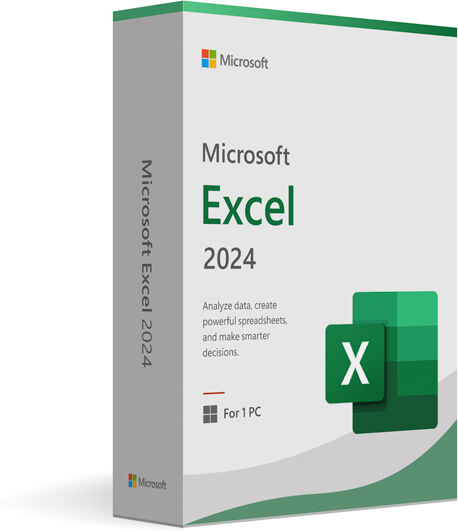
Microsoft Excel 2024 for WindowsMicrosoft Excel 2024 for Windows is the latest iteration of the renowned spreadsheet software trusted by millions across the UK for personal, educational, and professional use. Designed specifically for Windows operating systems, this version maintains the familiar interface while incorporating enhanced features that streamline your workflow and boost productivity. Whether you are managing complex financial models, analysing data trends, or simply organising your daily tasks, Excel 2024 offers a versatile environment tailored to meet diverse needs. It supports a comprehensive range of functions and formulas, allowing you to perform calculations with precision and ease. The improved calculation engine ensures faster processing, even when dealing with large datasets, helping you save valuable time. One of the standout enhancements in Excel 2024 is the upgraded data visualisation tools. New chart types and intuitive formatting options enable you to present your information clearly and professionally. Creating dashboards or reports to share insights with colleagues or clients is now more straightforward, with visually appealing templates and customisation capabilities. Collaboration is also at the heart of this version. Excel 2024 integrates seamlessly with Microsoft's cloud services, making it easier than ever to work alongside your team in real time. You can share your workbooks securely, track changes, and combine inputs without confusion or data loss, all within the familiar Excel environment. The software also includes smart features powered by artificial intelligence, such as predictive suggestions and error checking, which aid in reducing mistakes and improving accuracy. Additionally, the enhanced accessibility tools ensure that Excel remains usable for people of all abilities, supporting keyboard navigation and screen readers. Installation and activation are straightforward, allowing you to get started quickly on your Windows PC. With Microsoft Excel 2024, you gain access to a robust, industry-standard spreadsheet program that continues to set the benchmark for data organisation and analysis in the UK market. For professionals in finance, accounting, marketing, education, and beyond, Excel 2024 remains an indispensable tool. Its compatibility with previous Excel files ensures you can easily open, edit, and save workbooks without compatibility issues. Moreover, integration with other Microsoft Office applications allows for efficient workflows when creating complex documents or presentations. In summary, Microsoft Excel 2024 for Windows combines familiar ease of use with modern enhancements designed to optimise your productivity. Its powerful features, collaborative tools, and improved data visualisation capabilities make it a valuable addition for anyone requiring reliable spreadsheet software in the UK. Whether for home use or enterprise environments, Excel 2024 provides a dependable platform for all your data management needs.99,99 £*Shipping: 0,00 £Secure redirect to the provider
-
Microsoft Excel 2024 for macOSMicrosoft Excel 2024 for macOS offers a powerful and versatile spreadsheet solution tailored specifically for Mac users. With its updated features and seamless integration into the Apple ecosystem, this version of Excel is designed to enhance productivity whether you're managing complex data, performing financial analysis, or organising your day-to-day information. Built to leverage the capabilities of macOS, Excel 2024 delivers a smooth and intuitive experience. The interface is optimised for Mac's Retina displays, ensuring crisp visuals and easy navigation. Users will appreciate the familiar ribbon menu, refined for macOS conventions, enabling quick access to a wide array of data tools, formulas, and formatting options. This edition of Excel supports extensive data manipulation, including advanced charting features that help visualise trends and insights clearly. Whether you're creating pivot tables, employing functions for statistical analysis, or automating tasks with macros, Excel 2024 offers robust tools to help streamline your workflow. Collaboration is simplified with improved sharing options. Workbooks can be shared securely with colleagues and collaborators, with real-time co-authoring capabilities that keep everyone on the same page. Changes are tracked efficiently, and version history allows you to revisit previous iterations of your work. Integration with other Microsoft 365 applications is seamless, making it easier to combine data from Word documents or PowerPoint presentations. Excel 2024 also supports compatibility with a wide range of file formats, ensuring you can open and save your spreadsheets without hassle. Security features are enhanced to protect your sensitive data. Password protection, data encryption, and compliance with Microsoft’s trusted security standards mean your information stays secure whether stored locally or in the cloud. For Mac users who require a comprehensive spreadsheet program, Microsoft Excel 2024 stands out as a reliable and feature-rich choice. Its combination of powerful functions, polished design, and strong integration with both macOS and Microsoft 365 services makes it suitable for students, professionals, and businesses alike. Experience the efficiency and flexibility of Microsoft Excel 2024 for macOS to manage your data with confidence and precision. Whether handling budgets, datasets, or project plans, this edition equips you with the tools needed for success on your Mac.249,99 £*Shipping: 0,00 £Secure redirect to the provider
-
David A. Williams Excel VBA and Macros 2 Books Collection Set For Step-by-Step Excel Programming - Non Fiction - PaperbackTitles in This Set:. Excel VBA: Learn VBA with Excel. Excel Macros Mastery: Automate Your Spreadsheets Condition: BRAND NEW. Format: Paperback. ISBN: Overview:. Unlock the power of automation in Excel with this carefully designed two-book collection. Built for practical learners, the bundle guides you from the fundamentals of macros and the Visual Basic for Applications (VBA) language to hands-on techniques that save time, reduce errors, and turbocharge your productivity. The first book introduces core concepts—recording macros, editing simple scripts, and applying automation to everyday tasks—so you can start seeing immediate results. The second book dives deeper into VBA programming: how to structure projects, manage variables and data, implement robust error handling, and create user-friendly forms to streamline data entry. Together, these titles form a cohesive learning path that combines ready-to-run code with clear explanations, enabling you to practice along and build confidence as you go. Whether you’re a student, analyst, or professional looking to optimize workflows, this collection makes Excel automation approachable, reliable, and achievable. What Makes This Collection Special:. This set stands out because it pairs two complementary strands of Excel automation. You get practical, immediately usable macros that solve real-world problems, alongside a solid foundation in VBA programming that empowers you to customize and extend those solutions. The journey from macro basics to more advanced scripting is deliberately paced, so you can master one step at a time and revisit concepts with increasing complexity. The inclusion of sample code and guided exercises means you can learn by doing, not just reading. Designed for quick wins and lasting skills, the collection is also a thoughtful gift for colleagues, graduates, or anyone who spends long hours in spreadsheets and wants to reclaim that time for more impactful work. Books Included in This Collection:. Excel VBA: Learn VBA with Excel. This title introduces the essentials of VBA within the familiar Excel environment. Readers discover how to record actions, write straightforward loops, and manipulate worksheets with code. The book emphasizes practical, repeatable templates you can adapt to your own projects, plus step-by-step guidance on debugging and refining your scripts. With approachable explanations and hands-on exercises, it’s ideal for beginners who want to automate routine tasks and build a solid programming habit without being overwhelmed by jargon. Excel Macros Mastery: Automate Your Spreadsheets. This second book expands your toolkit with more robust VBA techniques and macro-automation strategies. Topics include organizing code for scalability, handling errors gracefully, working with arrays and objects, and building user forms to collect data efficiently. Real-world examples—from budget trackers to data dashboards—demonstrate how disciplined coding translates into tangible time...29,97 £*Shipping: 2,99 £Secure redirect to the provider
-
How can I open an Excel file with Excel 2010 instead of Excel 2016?
To open an Excel file with Excel 2010 instead of Excel 2016, you can right-click on the Excel file you want to open. Then, select 'Open with' and choose Excel 2010 from the list of programs. If Excel 2010 is not listed, you can click on 'Choose another app' and navigate to the location where Excel 2010 is installed on your computer. Select Excel 2010 and check the box that says 'Always use this app to open .xlsx files' to ensure that Excel 2010 is used to open Excel files by default. **
-
How can I open an Excel file with Excel 2010 and not with Excel 2016?
To open an Excel file with Excel 2010 instead of Excel 2016, you can right-click on the Excel file you want to open. Then, select "Open with" and choose Excel 2010 from the list of programs. If Excel 2010 is not listed, you may need to browse for the program in your computer's file directory. Once you have selected Excel 2010, the file should open in that version of Excel. **
-
How do I link different Excel files in Excel?
To link different Excel files in Excel, you can use the "Insert" tab and select "Object" from the "Text" group. Then, choose "Create from file" and browse to select the file you want to link. You can also use the "Copy" and "Paste Special" options to link data between different Excel files. Another option is to use the "Data" tab and select "Get Data" to import data from other Excel files and create a connection between them. **
-
'Excel or Libre?'
The choice between Excel and LibreOffice depends on your specific needs and preferences. Excel is a widely used and powerful spreadsheet program with a user-friendly interface, extensive features, and compatibility with other Microsoft Office applications. On the other hand, LibreOffice is a free and open-source alternative that offers similar functionality to Excel, making it a good choice for those looking for a cost-effective solution. Ultimately, the decision between Excel and LibreOffice will depend on factors such as budget, compatibility with other software, and personal preference. **
Similar search terms for Excel
-
Joseph Joseph Excel 2-Tier Steel Dish Rack - GreyJoseph Joseph presents the Excel 2-Tier Steel Dish Rack in Grey and Stainless Steel, this great rack offers plenty of draining space but feeling compact at the same time and not crowding your sink area, it has an integrated drip tray underneath the built-in wine glass holder, enabling them to dry safely. The large capacity gives you plenty of room for all your crockery and dishes, the fast-draining design with its raised ribs prevents water from collecting underneath mugs or bowls. A great dish rack for all kitchens. Product Features Excel 2-Tier Dish Rack - Grey Made from steel with a stainless steel fingerprint-proof coating on the body Large draining space capacity Coated non-scratch wine glass holder for up to 4 glasses Movable cutlery drainer and draining spout Dismantles easily for cleaning Dimensions: H 32cm x W 46.5cm x D 31.5 cm / H 12.6" x W 18.32" x D 12.4" Hand wash - do not use abrasive cloths on stainless steel parts69,99 £*Shipping: 0,00 £Secure redirect to the provider
-
ZURU X-Shot Excel Reflex 6 Blaster - Age 8+ - RedPrepare to dominate your opponents with the X-Shot Excel Reflex 6 blaster. This blaster is designed for maximum firepower, allowing you to ambush the competition with a rapid-fire of 6 darts in just seconds thanks to its rotating barrel. The combination of speed and frequency makes this blaster a formidable opponent on the battlefield. Before you unleash a storm of darts, prime and load your blaster, then fire away with precision and power, hitting targets from distances of over 27 meters. With the X-Shot Reflex 6 in your hands, you can improve your chances of winning and finish the battle before your opponents react. The X-Shot Reflex 6 blaster is suitable for ages 8 and above.5,99 £*Shipping: 3,95 £Secure redirect to the provider
-
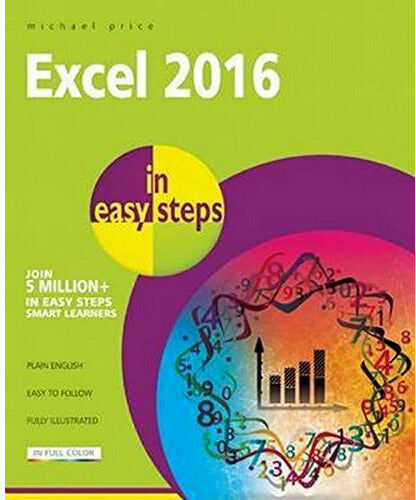
In Easy Steps Limited Excel 2016 in easy steps by Michael PriceExcel 2016 in easy steps will help you get to grips with the latest version of this popular spreadsheet application. Areas covered include: Creating, editing and manipulating worksheets Formulas, Functions and Pivot Tables Handy templates to give you a head start Macros for everyday tasks to save time Charts to get an overview of your data Linking workbooks for automatic updates Using the Excel Online app to share and collaborate on spreadsheets and workbooks Adding images and illustrations to your spreadsheet to impress your colleagues! Whether you re upgrading to Excel 2016 or new to the spreadsheet concept, use this guide to learn the key features constructively and get more out of Excel 2016 in easy steps!5,99 £*Shipping: 2,99 £Secure redirect to the provider
-
Josh McKenzie Excel 2019: A Basic Guide for Beginners - Non Fiction - PaperbackTitle:. Excel 2019: A Basic Guide for Beginners, the Real Bible to Learn Formulas, Methods and Use of VBA Condition: BRAND NEW. Format: Paperback Overview:. Embark on a practical, approachable journey into Microsoft Excel 2019 with this beginner-friendly guide. Designed for absolute newcomers, it strips away the intimidation surrounding cells, formulas, and spreadsheets and replaces confusion with clarity. The author lays out a clear, progressive path: establish a solid workbook structure, grasp relative and absolute references, and build confidence through core formulas before advancing to more powerful techniques. Along the way, you’ll discover how to organise data so it’s readable at a glance, create reliable templates, and turn raw numbers into actionable insights. The guide also introduces the basics of Visual Basic for Applications (VBA), giving you a gentle introduction to automation that can save hours of repetitive work. Whether you’re budgeting for a project, managing a small business, or simply trying to make sense of data, this book shows you how to keep information tidy, accurate, and easy to interpret. By the end, you’ll not only know what to click and type, you’ll understand why those choices matter and how they fit into your broader goals. This is practical, result-driven Excel for real life. What Makes This Book Stand Out:. The book distinguishes itself with a hands-on, no-nonsense approach that meets beginners where they are. It prioritises practical outcomes over theory, guiding readers through real-world tasks—building simple calculators, organising data for clear reporting, and automating repetitive steps with VBA at a level that demystifies programming without overwhelming. The language is plain but precise, with step-by-step instructions, annotated screenshots, and bite-sized exercises that reinforce learning without causing fatigue. Each chapter builds on the last, creating a cohesive learning arc that reduces overwhelm and increases immediate productivity. If you’ve ever wished Excel came with a patient tutor, this is effectively it—clear, friendly guidance that translates into tangible daily wins. Who This Book Is Perfect For:. This paperback is ideal for anyone starting out with Excel 2019—students, administrative professionals, small business owners, freelancers, and career switchers who need a solid, practical foundation fast. It’s also a confident companion for absolute beginners who want to escape complicated jargon and start producing reliable spreadsheets for work or study. If you’ve felt frustrated by tangled formulas or wasted time on repetitive tasks, this guide offers a smooth staircase from first steps to functional mastery. It’s a reliable, non-intimidating entry point that supports self-study, onboarding new team members, or gifting to someone who’s ready to level up their data skills. Key Highlights:. Clear, beginner-friendly instruction that builds confidence quickly. Practical focus on formulas, methods,...12,71 £*Shipping: 2,99 £Secure redirect to the provider
-
How can I save another open Excel file in Excel VBA?
To save another open Excel file in Excel VBA, you can use the `Workbooks` collection to refer to the specific workbook you want to save. You can then use the `Save` method on that workbook object to save it. Here is an example code snippet: ```vba Dim wb As Workbook Set wb = Workbooks("AnotherWorkbook.xlsx") wb.Save ``` Replace "AnotherWorkbook.xlsx" with the name of the workbook you want to save. This code will save the specified workbook without changing the active workbook. **
-
How can I link an Excel file to another Excel file?
To link an Excel file to another Excel file, you can use the "Insert" tab and select "Object" from the "Text" group. Then, choose "Create from file" and browse to select the file you want to link to. You can also use the "Paste Special" option to link the data from one Excel file to another. This will allow you to update the linked data in one file and have it automatically update in the other file. **
-
Is Excel VBA IsNumeric?
Yes, Excel VBA has a function called IsNumeric that checks whether a value is a number. This function returns True if the value is a number, and False if it is not. It can be used to validate user input or to perform calculations based on numeric values in Excel VBA. **
-
Can Excel cells blink?
No, Excel cells cannot blink. Excel is a spreadsheet program designed for data organization and analysis, so it does not have a feature that allows cells to blink. However, you can use conditional formatting to make cells change color based on certain criteria, but they will not blink. **
* All prices are inclusive of VAT and, if applicable, plus shipping costs. The offer information is based on the details provided by the respective shop and is updated through automated processes. Real-time updates do not occur, so deviations can occur in individual cases. ** Note: Parts of this content were created by AI.